Starting a new terminal instance with a hotkey on MacOS
So recently I've tried out Omarchy, which is basically a already configured variant of Arch Linux. Now one thing I can say is that I have no clue about Linux, so I have no idea how good or bad Omarchy is, but the hype around it is real.
One thing that is preconfigured in Omarchy is that you can open a new terminal window with Super+Enter, which is a really nice way to quickly open a terminal for that one command you want to run.
Now I wanted to have the same functionality on my MacBook, since I'm not ready to switch to Linux yet. So I thought this should be easily possible, and at least when using Raycast it is, and to be honest, if you're not using Raycast yet on MacOS, you really should anyway.
To set this up, you first need to install Raycast, which you will probably already have if you want to follow this guide. After that, go to Raycast's settings by either clicking on the Raycast Icon in the menu bar, or by pressing Cmd+, while Raycast is open.
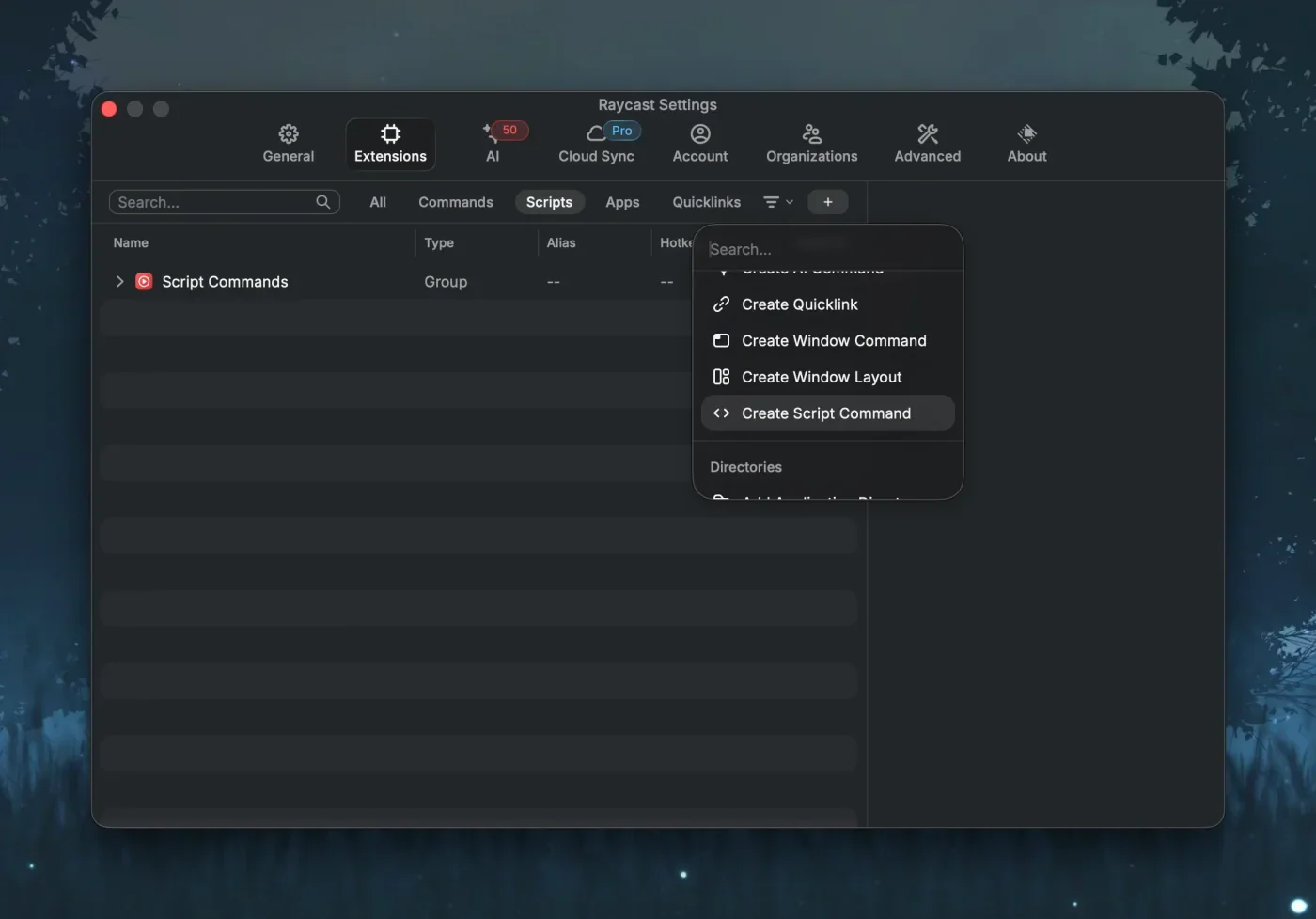
Then navigate to the "Extensions" tab and in there, go to the "Scripts" section. In there, you will find a create button. Click on it and select the "Create Script Command" option.
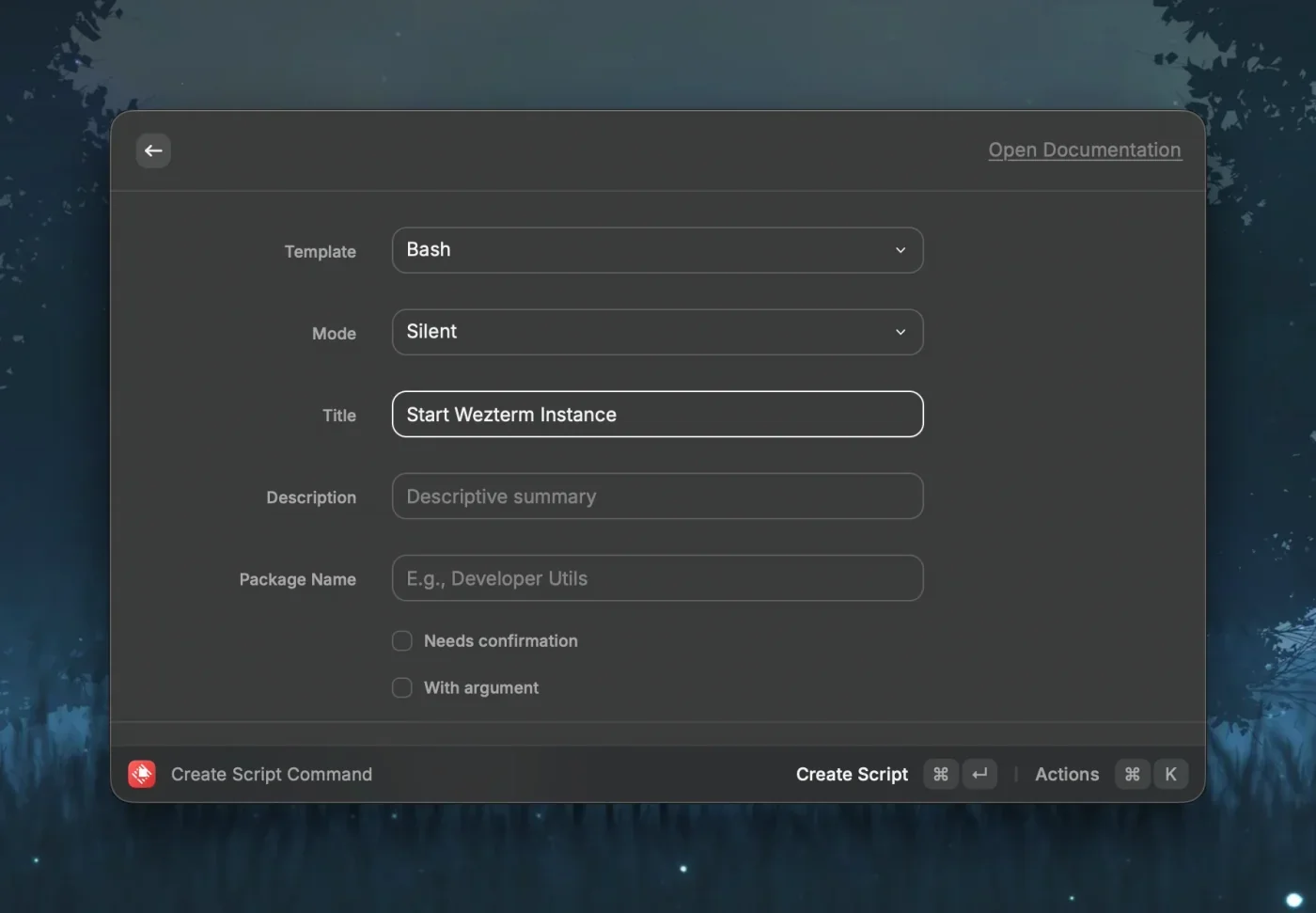
This will open a new dialog where you need to fill out some information about the new Script. We are going to create a Bash script and choose Silent as the mode, which means that the script will run instantly and silently. Give the whole thing a name and thats all the information you need, but if you want you can go ahead and fill out the rest of the information as well. Confirm everything by clicking on Create Script or by hitting Cmd+Enter.
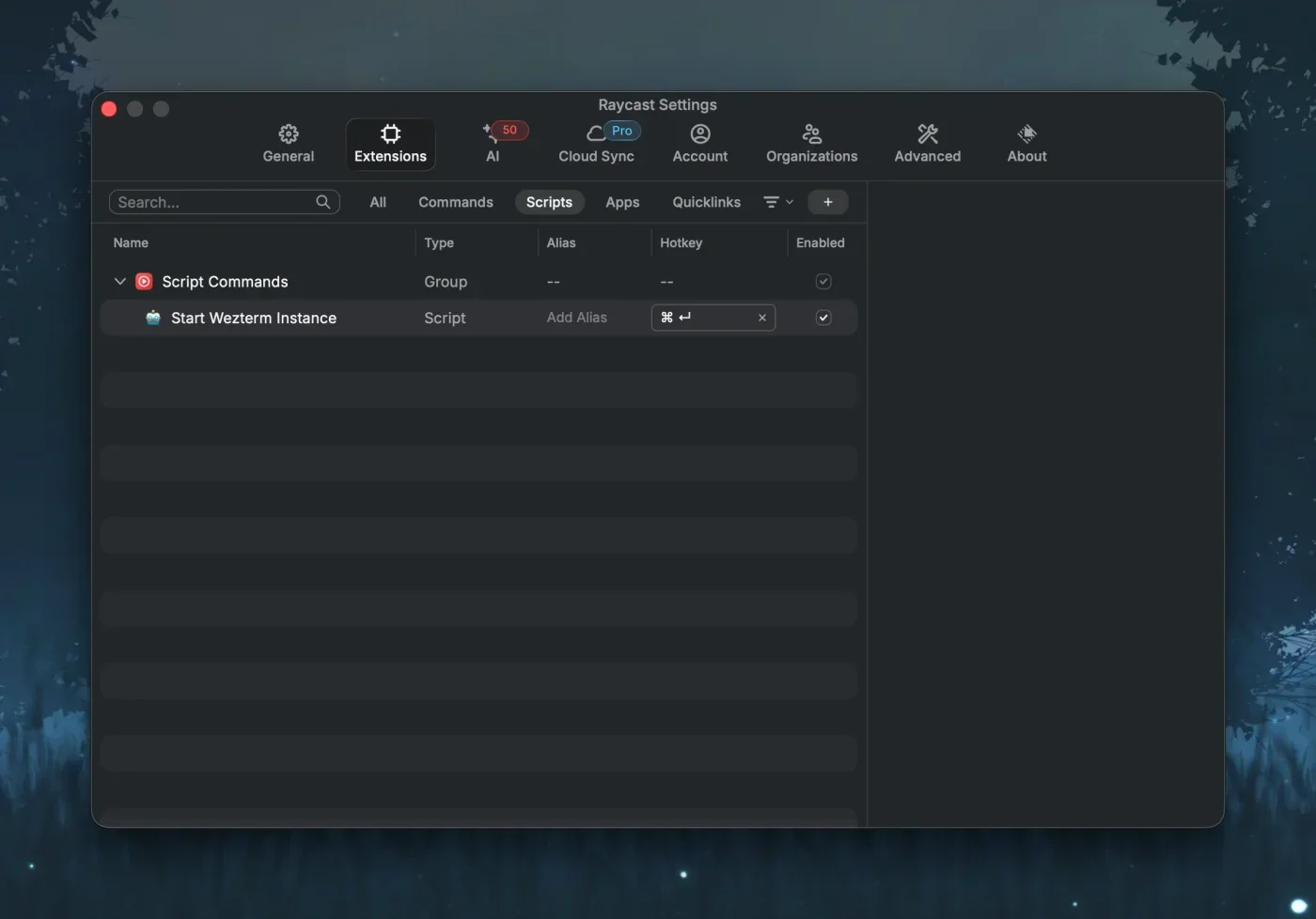
You will be shown a dialog where you can save your new script (in our case a .sh file). Now you will see your newly created script in the list of scripts. You can assign a hotkey to it by clicking in the cell in the Hotkeys column and pressing the hotkey you want. If you press the assigned hotkey now, you will see a "Hello World" dialog pop up, which is the default content of a newly created script.
To change the script to open a new terminal window instead, open the script you've created (the .sh file you saved earlier) in your favorite text editor and replace the content with the following:
#!/bin/bash

# Required parameters:
# @raycast.schemaVersion 1
# @raycast.title Start Wezterm Instance
# @raycast.mode silent

# Optional parameters:
# @raycast.icon 🤖

# Documentation:
# @raycast.author michaelfaisst
# @raycast.authorURL https://raycast.com/michaelfaisst

open -n -a Terminal
This script will open a new instance of the default Terminal application. The -n flag ensures that a new instance is opened even if one is already running. The -a Terminal specifies that we want to open the Terminal application.
After saving the file, you can now press your assigned hotkey and a new Terminal window should open up instantly.
But wait, nobody in their right mind uses the default Terminal, right? I for one use WezTerm, which is a really nice terminal emulator. If you want to open WezTerm instead of the default Terminal, simply replace the open command in the script with the following:
#!/bin/bash

# Required parameters:
# @raycast.schemaVersion 1
# @raycast.title Start Wezterm Instance
# @raycast.mode silent

# Optional parameters:
# @raycast.icon 🤖

# Documentation:
# @raycast.author michaelfaisst
# @raycast.authorURL https://raycast.com/michaelfaisst

open -n -a wezterm
Btw, you could also now use the open command and directly call the wezterm binary with the --always-new-process flag to always start a new instance, but I found that this doesn't move the focus to the newly created instance, and with open -n it does.
You can of course replace wezterm with any other terminal application you want, like Alacritty, Kitty etc. you can even append additional arguments with the --args flag if you want to customize your command even more.
And that's it! You now have a custom hotkey to always open a new terminal window on your MacOS system using Raycast, enjoy!